


The release of WordPress 7.1 will help you organize your notes more easily and add visually appealing elements to your posts and pages, like waveform visualizations, tabs within a block, and dynamic image galleries. You’ll also notice some updates designed to improve organization in the admin.
Writing and editing updates
Style how your blocks look across various sizes
This update allows you to style how blocks look across three screen sizes and in interactive states like hover and focus — no CSS required. The new media editor makes handling images much easier by bringing free-form cropping, rotation, and metadata editing into one workflow.

Organize your notes more effectively
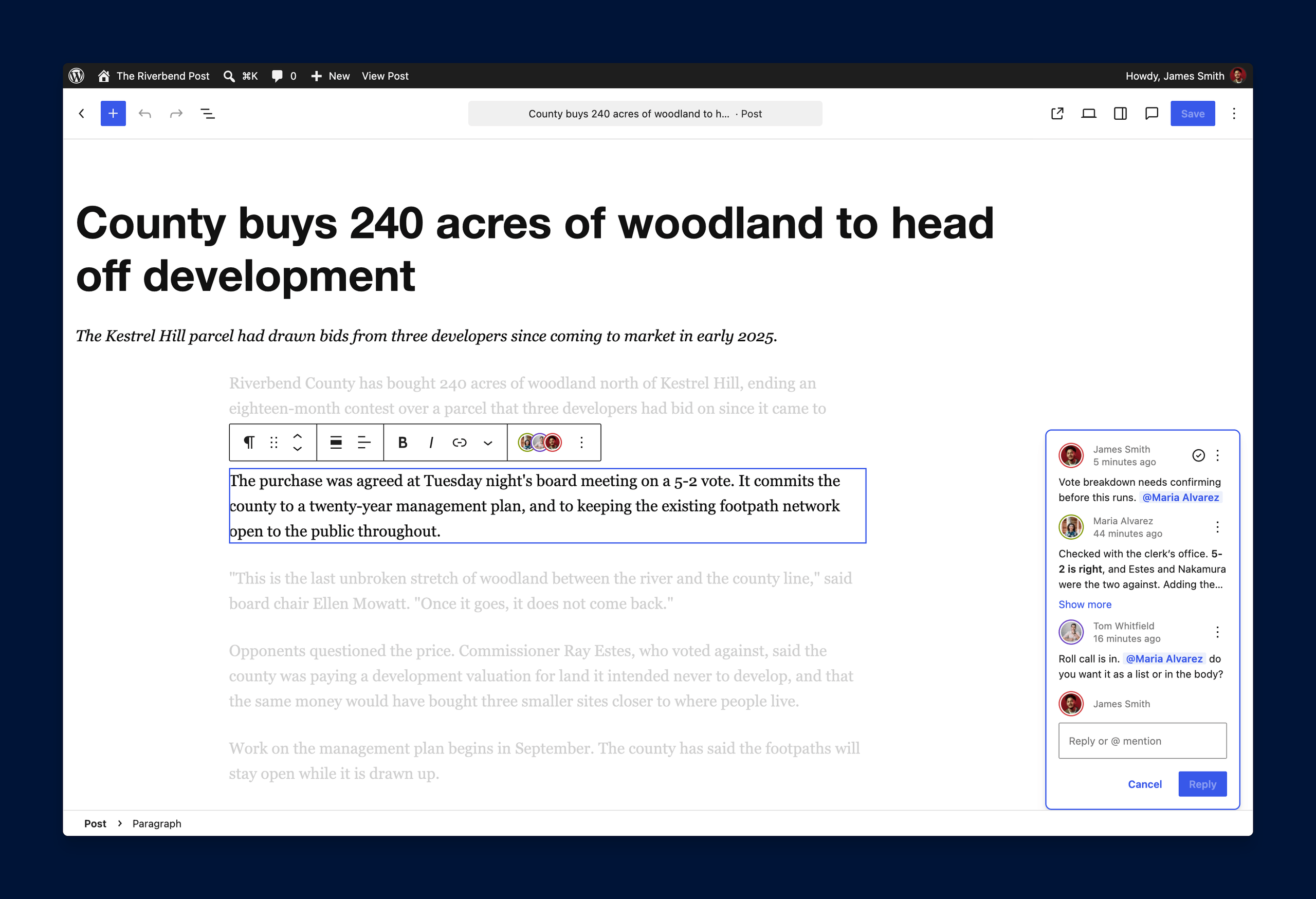
The editorial notes introduced in WordPress 6.9 gain text formatting, @mentions, thread management, and the ability to attach a note to selected text rather than a whole block. One block can hold several note threads. Notes now also support rich text formatting, which means you can bold, italicize, add links, and code to your notes.
Mentions search the site’s user list; if most of the accounts on your site are readers rather than staff, your administrators will see reader accounts in the mention list. Editors and authors won’t see these mentions. To help you keep track of these mentions, your site’s administrators will receive an email when a user receives one.
Keep track of the admin bar while you edit
The toolbar across the top of the dashboard now stays visible in the post editor instead of disappearing. You’ll only see it disappear when fullscreen and distraction-free modes are both on.
The admin bar used to disappear completely before this update, which would cut you off from the rest of wp-admin. Not only does this update make it easier to access the admin bar, but it also makes navigation much easier since the admin bar now provides site context and replaces the top-left W/site icon in the site editor with an explicit back button.
Control which versions of pages and posts you share with editors
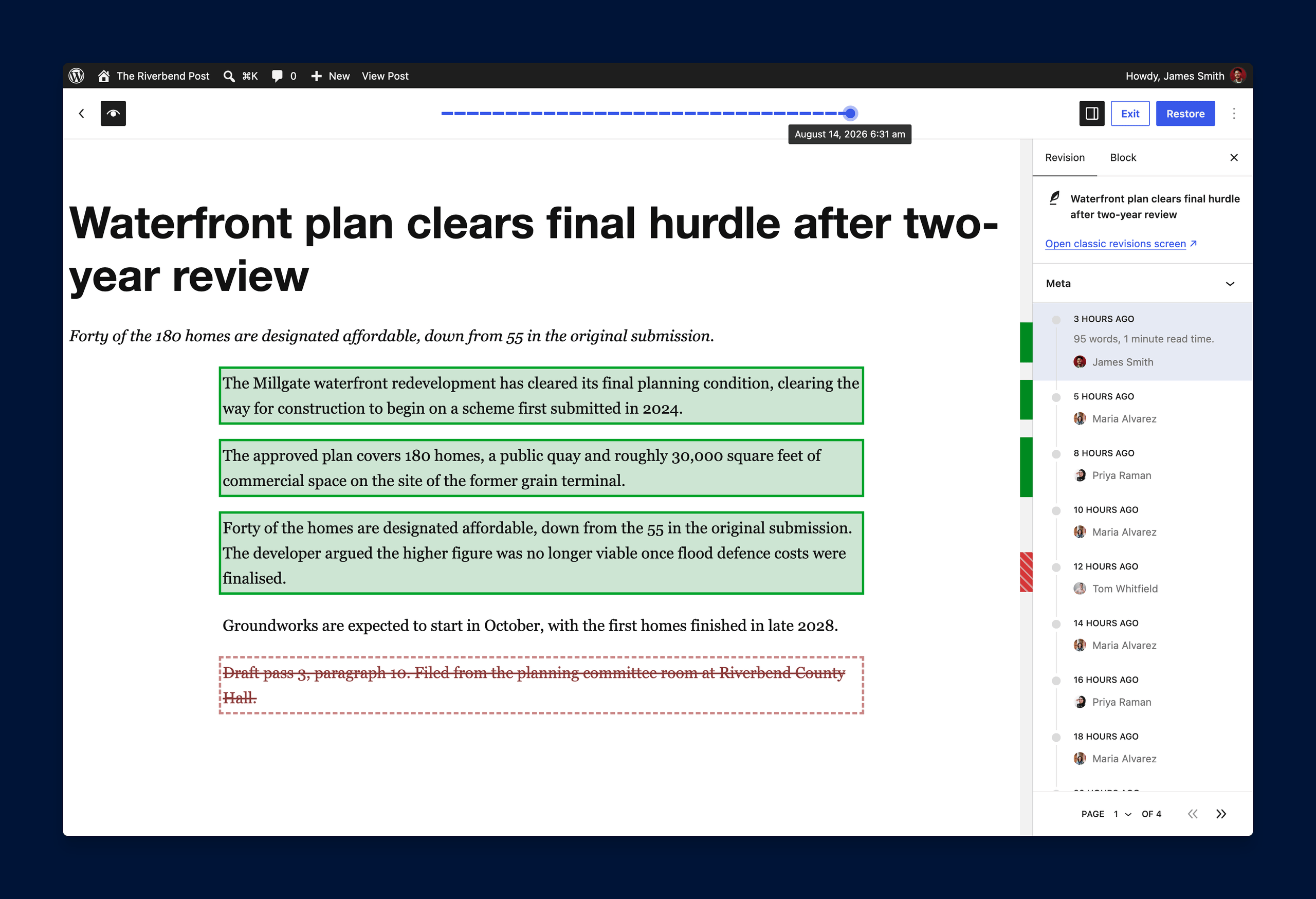
The revision view splits into pages, shows more detail about what changed, and marks which entries are autosaves. Newspack’s own major revisions feature stays on the older revisions screen, so both views exist side by side. Revisions also get shareable URLs, so you can send someone a link to a specific revision.
Find Layout settings in Styles
Now you can find your Layout settings in Styles. You’ll also see that text and background options are in a different panel.

Preview when you switch between blocks
Now you can preview the result when switching between block styles before you commit a new one.
A Shortcode block can also become the block that matches it. Select the block, open the block type switcher, and you’ll see the matching block alongside the usual options, including a preview of the result. An [ audio ]shortcode offers the Audio block, and [ video ], [ gallery ], and [ caption ]behave the same way. It is an option in a menu rather than a prompt, so nobody will be interrupted by it.

You’ll also notice that the command palette keyboard shortcut has moved into the Admin bar to remove visual clutter and resolve shortcut conflicts. And, rather than opening a long list of commands, the palette opens to the command you have selected in the editor.

Brand new blocks
Separate content within a block into tabs
Now you can split content across tabbed panels that readers navigate to using the Tabs block. It’s helpful for any content where you want to show options side by side, such as a Q&A. Note that this new block is different from the Newspack Ads tabs block. Select the icon with the two lines under the tabs to use this new block.

Add visualizations to your audio playlists
The new Playlist block lets you create audio playlists with waveform visualization, which basically turns sound into a picture. This update makes it easy to showcase multiple tracks or podcast episodes in a single interactive player, allowing readers to browse your audio content without leaving the page.

Updates to existing blocks
Access more icon collections and controls
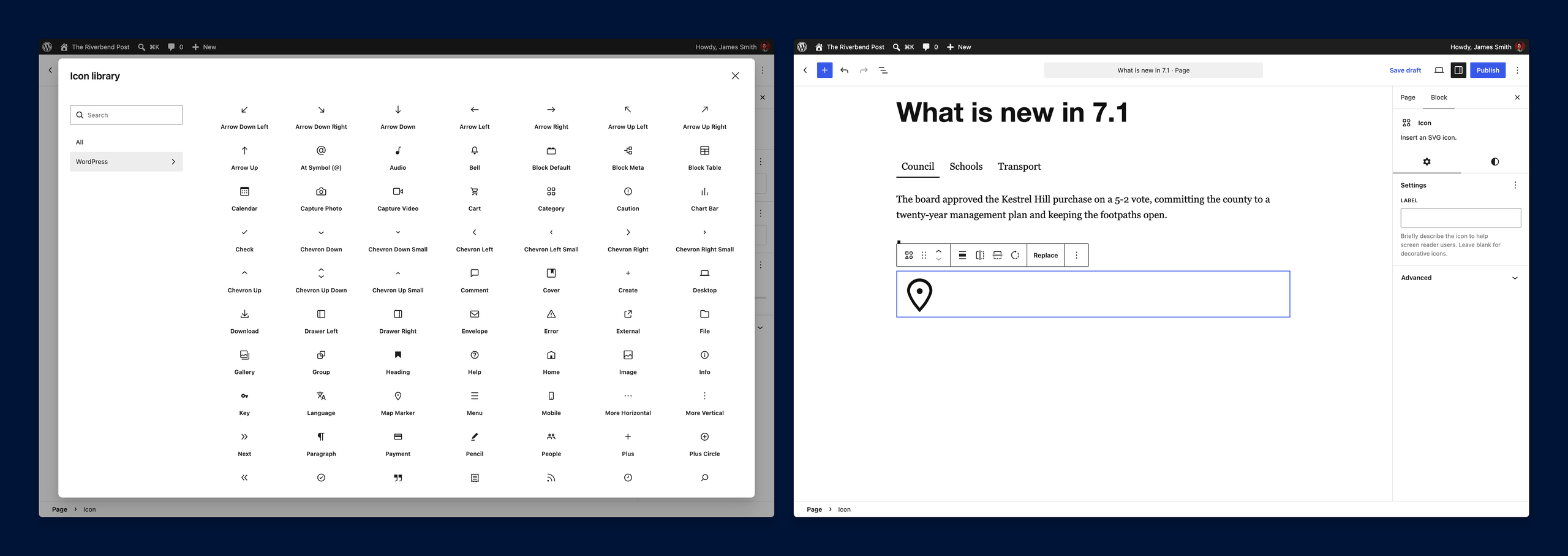
The Icon block first appeared with the release of WordPress 7.0. In 7.1, it gained more icon collections, plus flip and rotation controls.
Mark an image as decorative
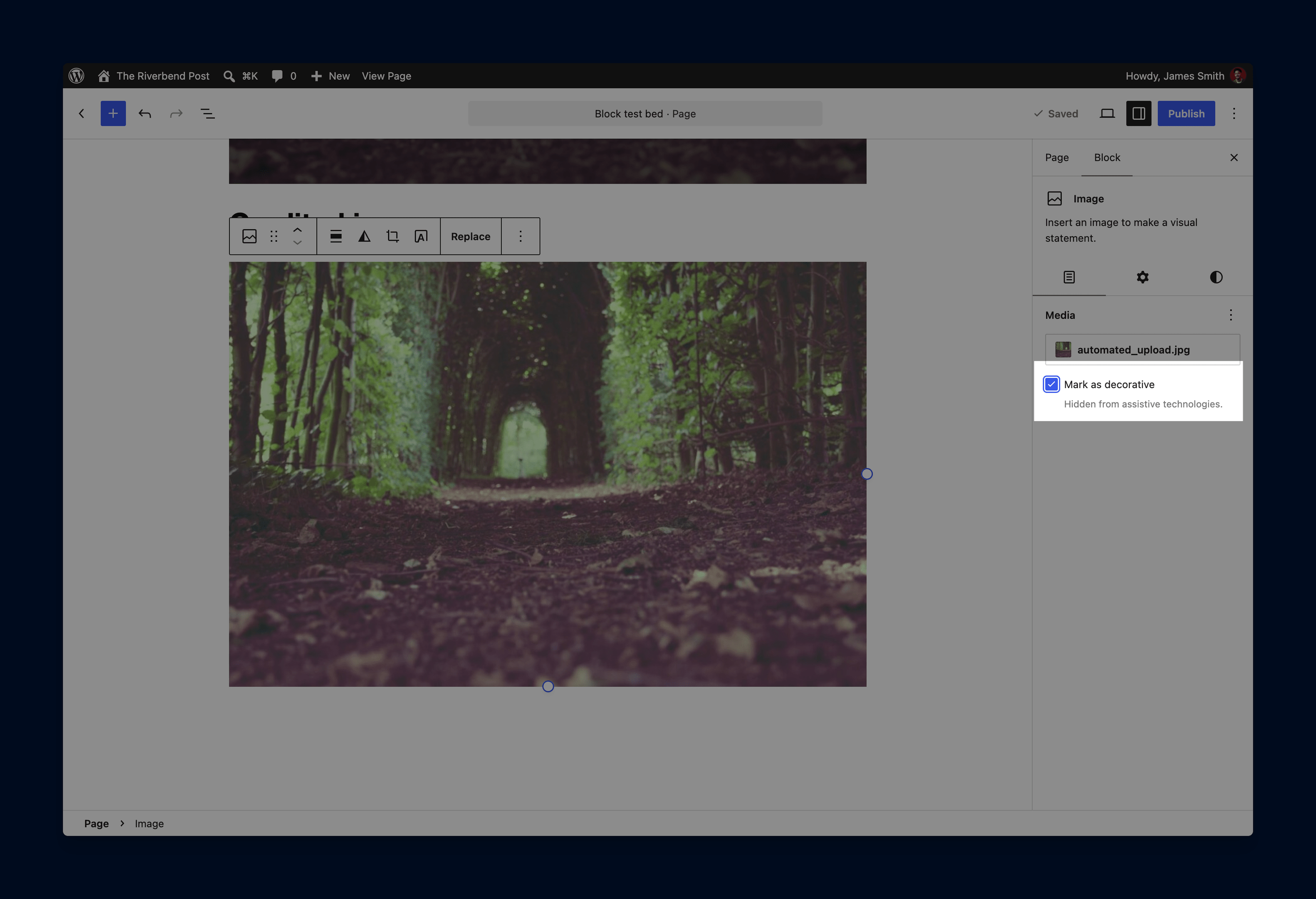
A new setting lets you mark an image as decorative, which hides it from screen readers and clears its alternative text. Any photo credit that you add via the credit field will stay below the image after you mark it as decorative.
Build dynamic galleries
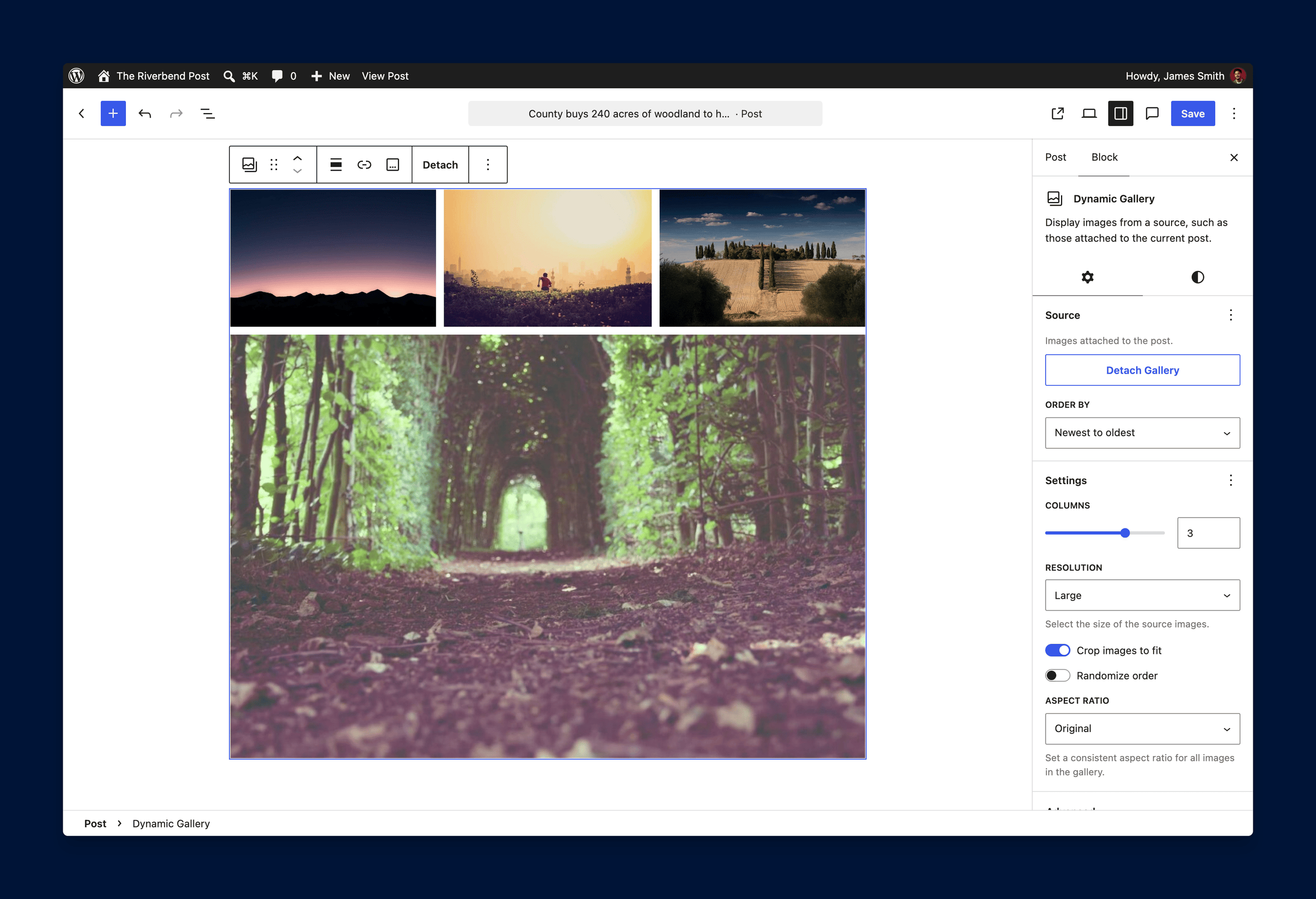
Now you can generate a gallery automatically from the images attached to a post. You can also convert the gallery back into individual images at any time using the Detach button. The images attached to a post also get their own tab in the block inserter, which is a faster way to access a set of images than the Media Library.
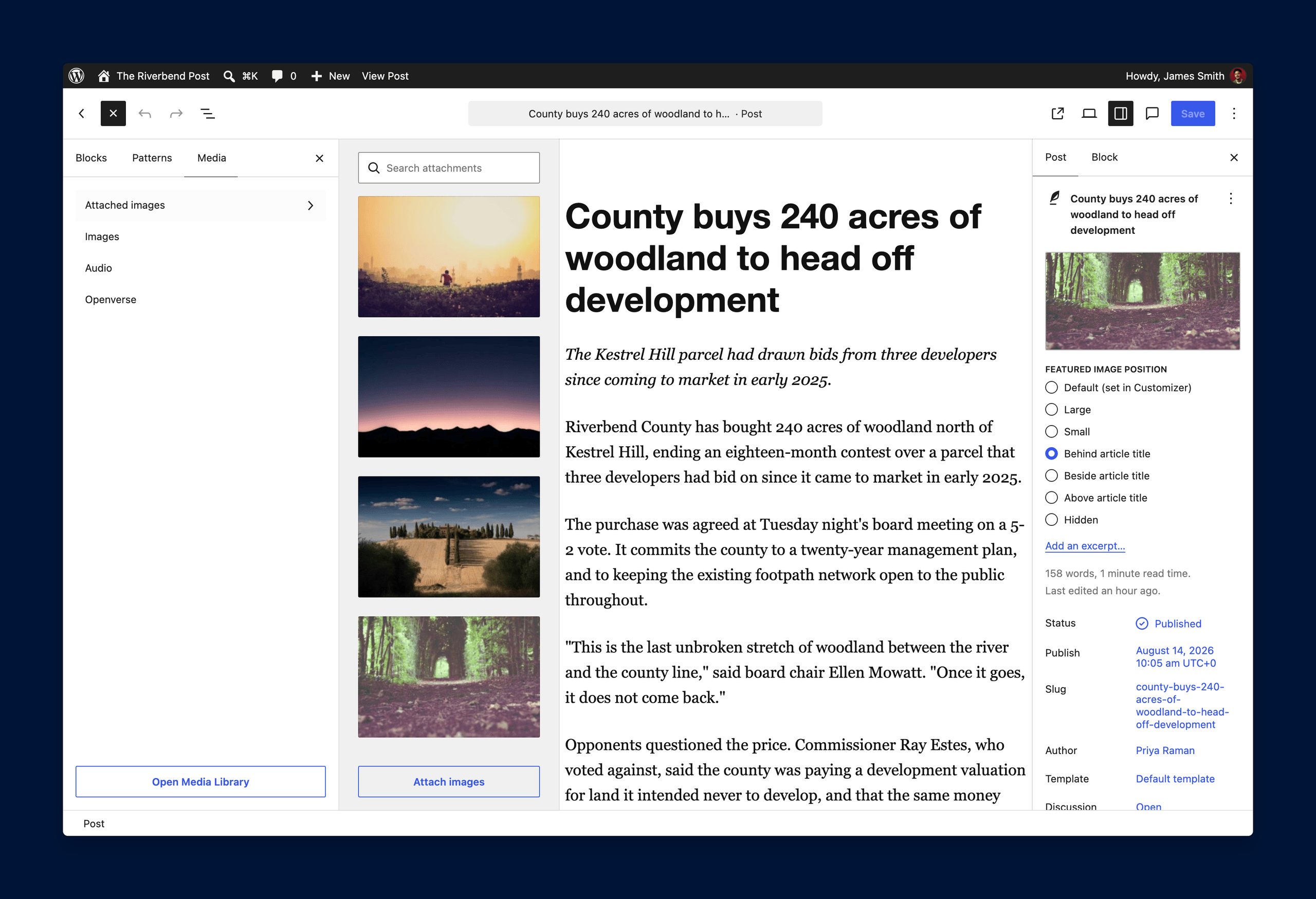
You can create a dynamic gallery via the Gallery block. Instead of hand-picking every image, a single “Use attached images” button populates a dynamic gallery from all media attached to the current post, which makes it easier for you to assemble an image gallery.
Access Button width in the Dimensions settings
You’ll notice that the Button width setting now lives in the shared Dimensions settings and that the Button block now uses the standard width control system. This update is meant to streamline the layout editing process.

Make the search box more obvious for your readers
Search boxes that previously ignored color settings will start using them, making it easier for your readers to find the search box on your site.
Automatically adjust the contrast of cropped images in the Cover block
This option appears whenever the Cover block uses an editable image. When you crop an image, the editor recalculates the contrast automatically, so text stays readable even if the crop removes the image’s brightest or darkest areas.
Combine static HTML with editable blocks
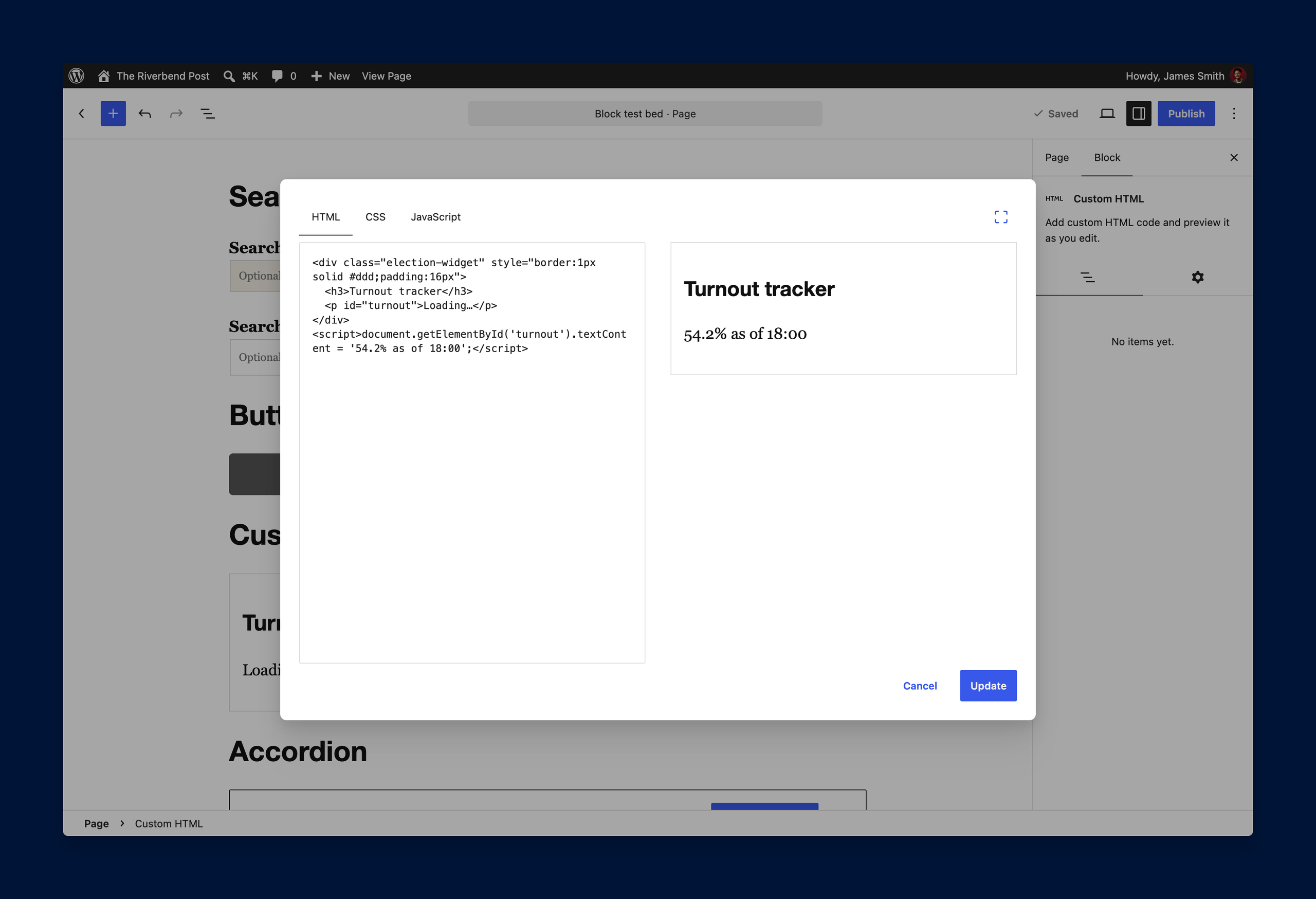
The Custom HTML block now has editable content areas alongside a fixed markup, which means you can edit something like a paragraph or an image in place, while the rest of your content stays fixed and can’t be moved, removed, or rearranged.
Changes to images and media
Edit images within a single window
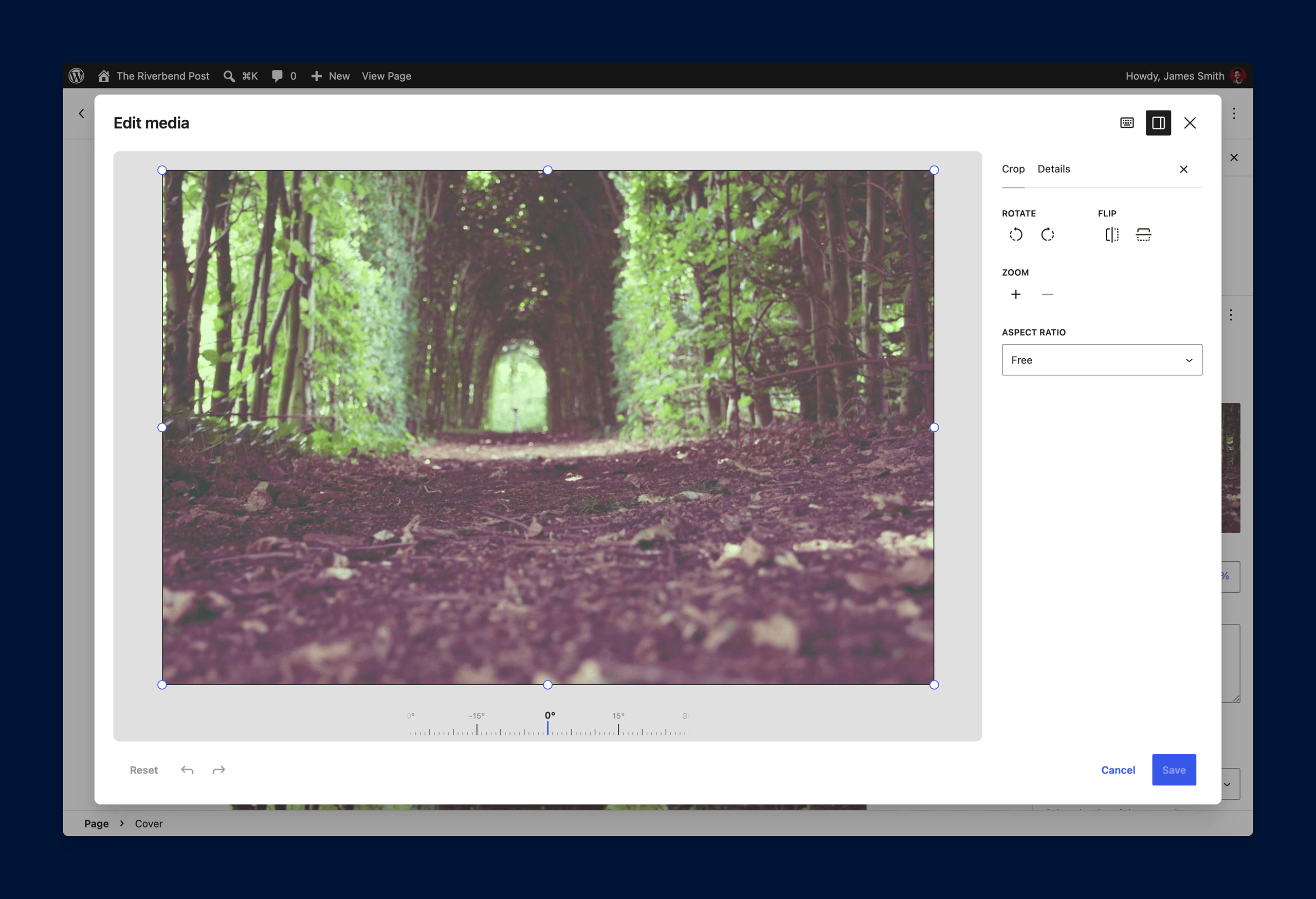
Cropping images just got easier now that you can crop, flip, rotate, and edit your image details from a single window.
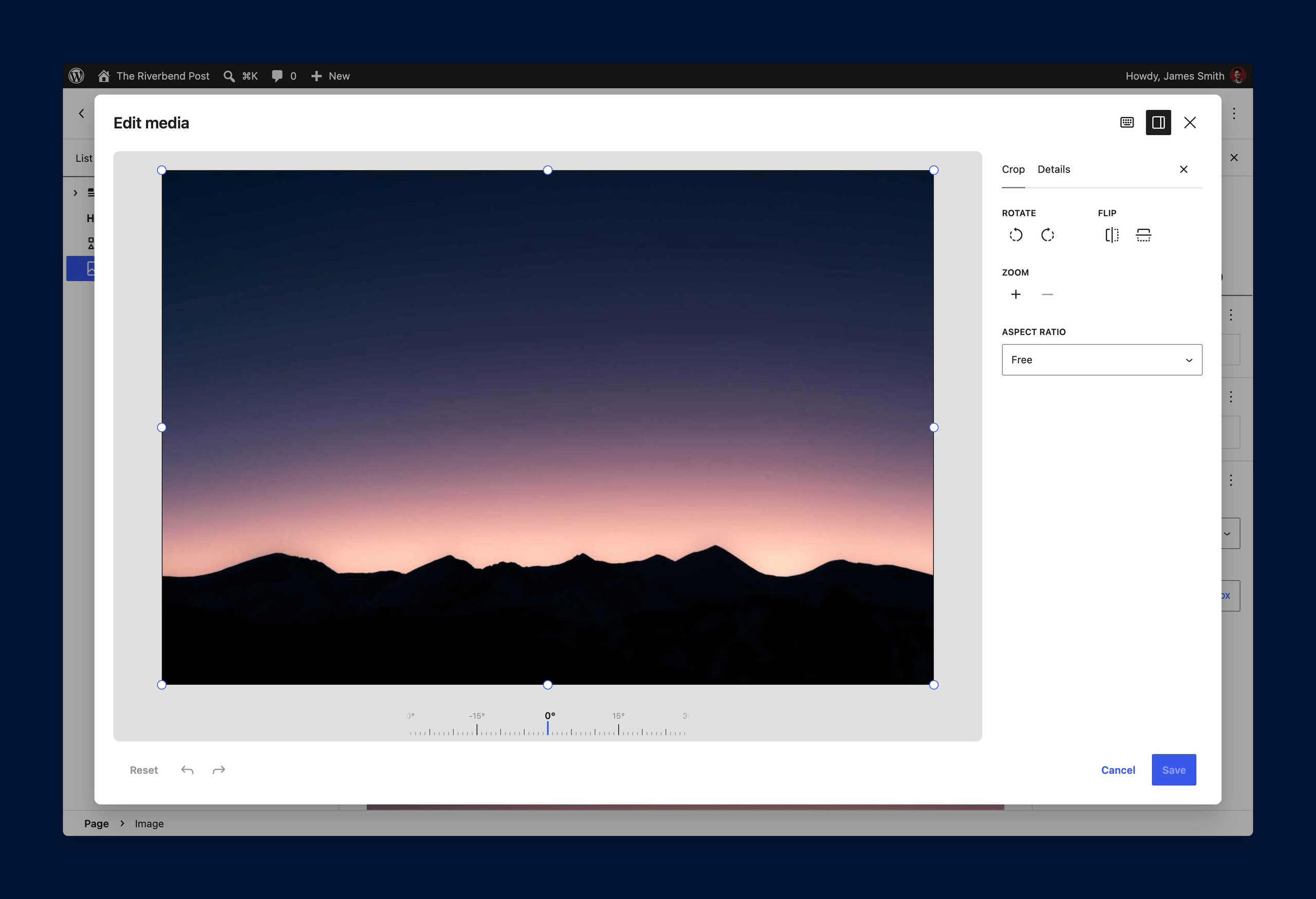
Please note two things about photo credits, and both matter if attribution is a requirement for your publication.
- The first is that Newspack’s credit fields are not in this window. The Details tab offers title, alternative text, caption, description, and file information. Credits are still visible and editable on the Media Library screen.
- The second matters more. Editing an image creates a new copy, and the credit does not carry over to that copy. The copy will not carry over the credit. If you plan to use the copy in any posts or pages, make sure to add the credit in the Media Library screen.
Load images faster
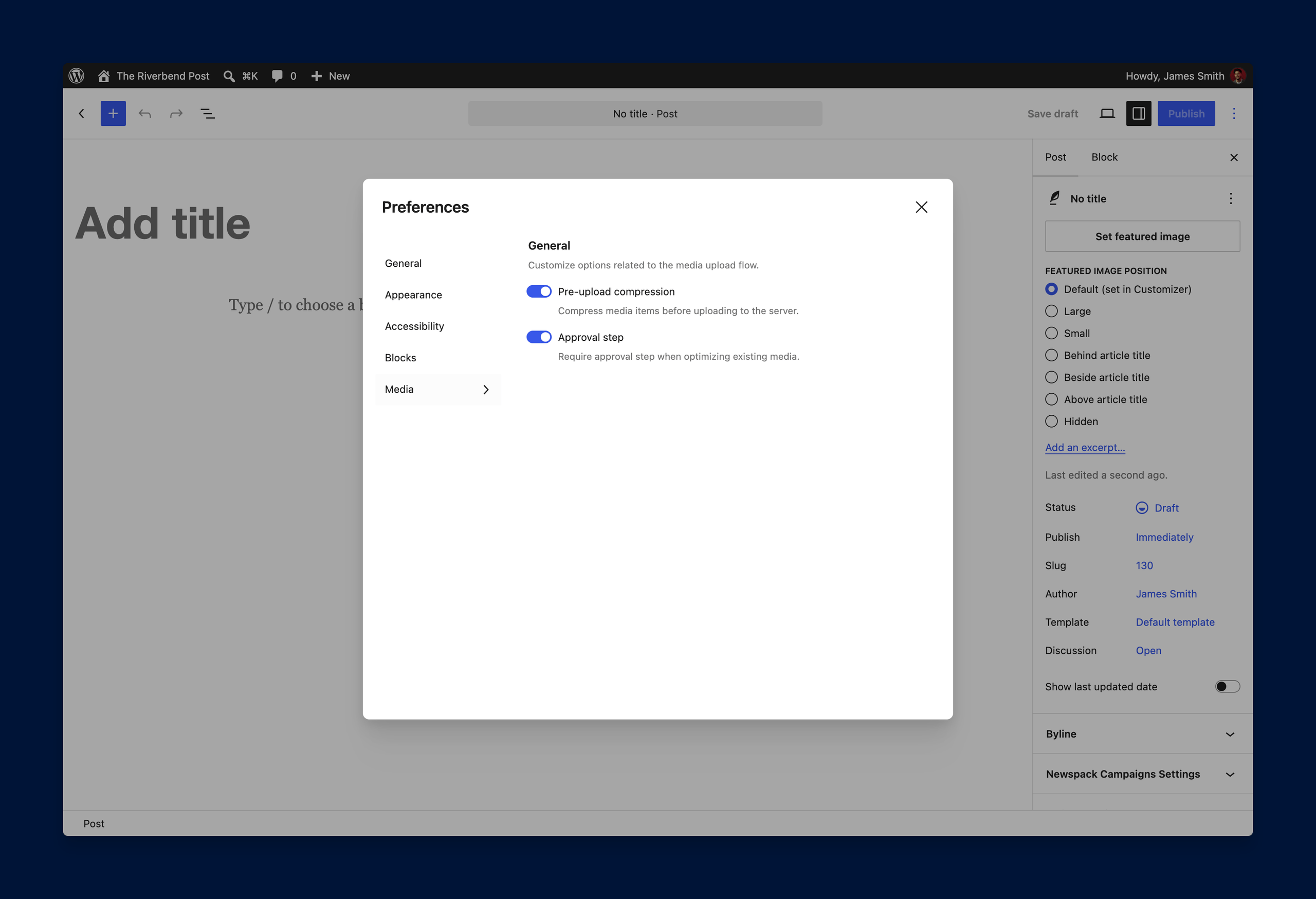
Image resizing functionality is now in the browser, which produces compressed image files that load faster for your readers.
Two switches control it, under Preferences and then Media in the editor:
- Pre-upload compression
- Approval step
Each option is a unique setting for each user in your newsroom.
Upload more visual formats like animated GIFs
Now you can upload more formats, including HEIC (the default format for iPhone photos), JPEGs with HDR gain maps, and animated GIFs. There’s now a GIF-to-video conversion feature, which loads animated GIFs quickly on your site.
View more items in the Media Library as you scroll
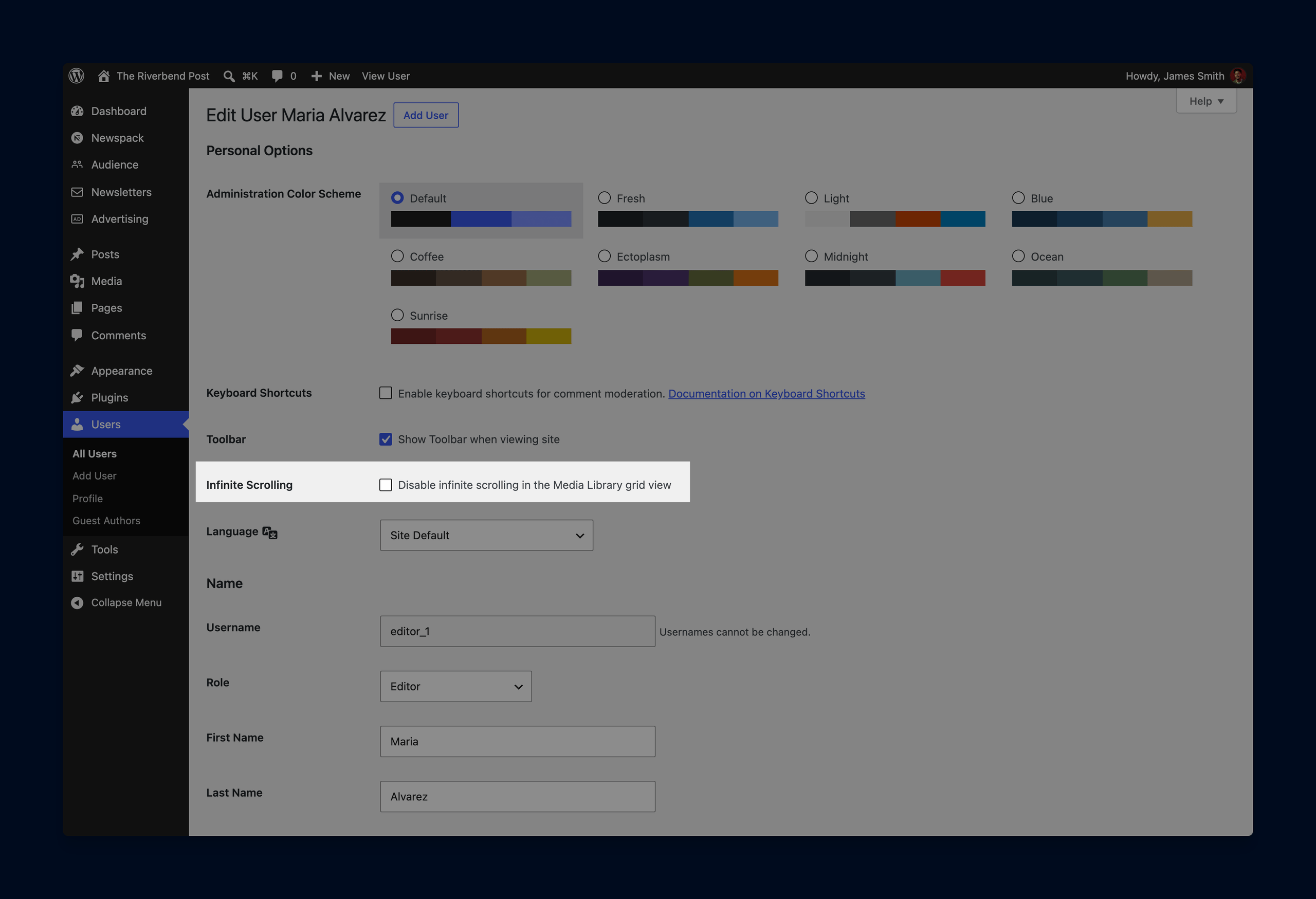
The media grid and the media picker load more items as you scroll. You no longer need to hand-pick every image from the Gallery block. There’s a “Use attached images” button that populates a dynamic gallery from all media attached to the current post.
This feature is turned on by default. So, if it’s not something you want to use, you can check the box to turn it off in your profile.
Categorize comments by parent comment
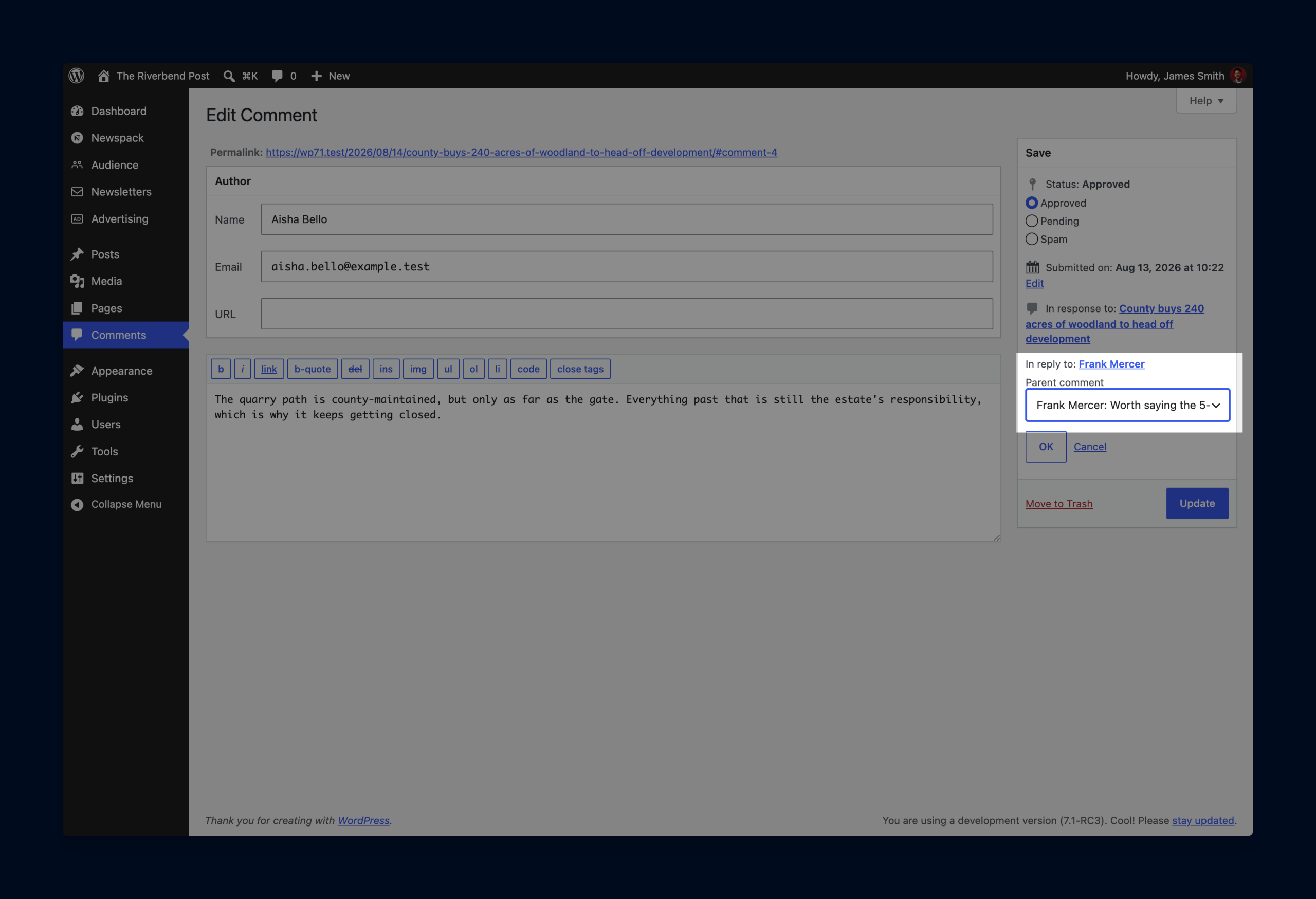
You can move a comment reply to a different parent comment by editing the comment and editing the parent comment in the panel on the right side of the editor. So, if someone accidentally replies to the wrong comment, you can easily move it to the proper parent comment.
Other notable updates:
- Gradients can layer over background images
- The Image block no longer assumes a deleted image still exists
- Now you can add placeholder text to featured image fields
- Accordions can be found by the browser’s find-in-page
- Grid layouts can fill the space available
- Post content is separated from the rest of the dashboard
- The editing area now sits in its own frame, apart from the surrounding admin page. This means no more switching behavior depending on which blocks you use.
If you have any questions as you explore these new features, please don’t hesitate to reach out in the #newspack-help Slack channel!